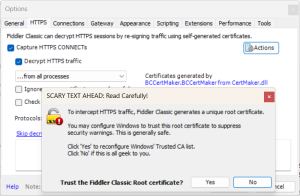
We all know how to perform a Fiddler HTTPS decrypted trace right: Go to the Fiddler Classic Tools menu > Options > HTTPS > Check the boxes to decrypt traffic and accept the HTTPS cert labeled as DO_NOT_TRUST_FiddlerRoot.
The problem with this method is although it worked fine in years past, more and more sites will detect and reject the certificate chain and refuse to display the outputs that you are trying to decrypt. To avoid this, we can use what was previously known as the Bouncy Castle certificate plugin. The plugin is no longer available on the BouncyCastle site (although C#/dotNET development tools are), but you can still download fiddlercertmaker.exe and install it which will create the alternate Bouncy Castle Certificates to use in Fiddler Classic avoiding detection from modern sites.
For example: trying to trace something like Plex’s video site for the CBS News Station, to see where the video actually originates from may yield a failure like this: https://watch.plex.tv/live-tv/channel/cbs-news:
There was an error loading the video – Please try again later.
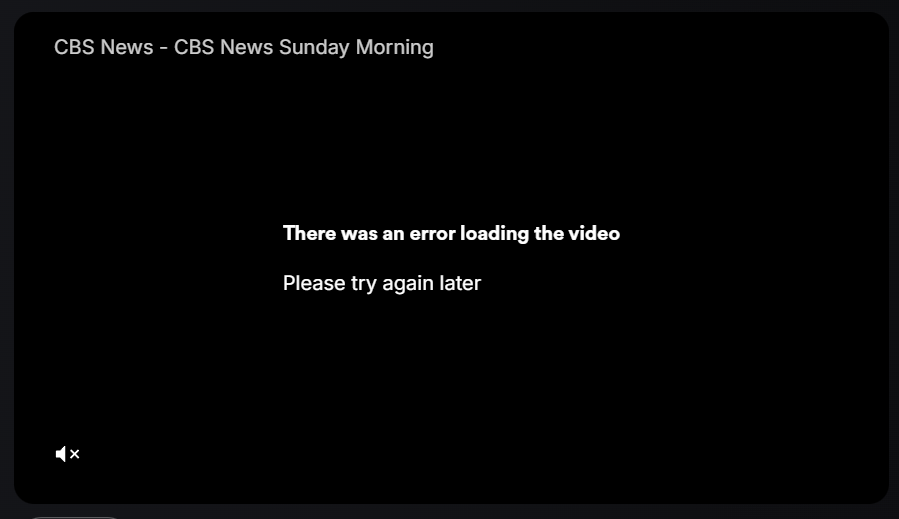
This happens because the root certificate is not trusted and is intentionally blocked. Bouncy Castle Certificate Generator differs from the default HTTPS decryption method because it generates certificates that are compatible with modern security standards. Unlike the legacy MakeCert or CertEnroll processes that produce lower bit RSA keys, Bouncy Castle includes the necessary compatible extensions and fields required by modern browsers like like SANs (Subject Alternative Names) and even scraps the CN=DO_NOT_TRUST_FiddlerRoot name.
To use Bouncy Castle based root certificates in Fiddler; Close Fiddler Classic, download and install fiddlercertmaker.exe:
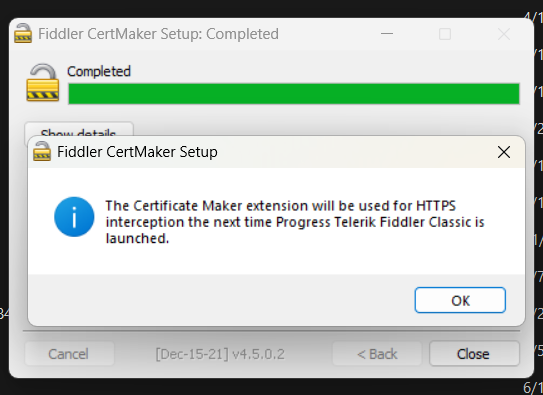
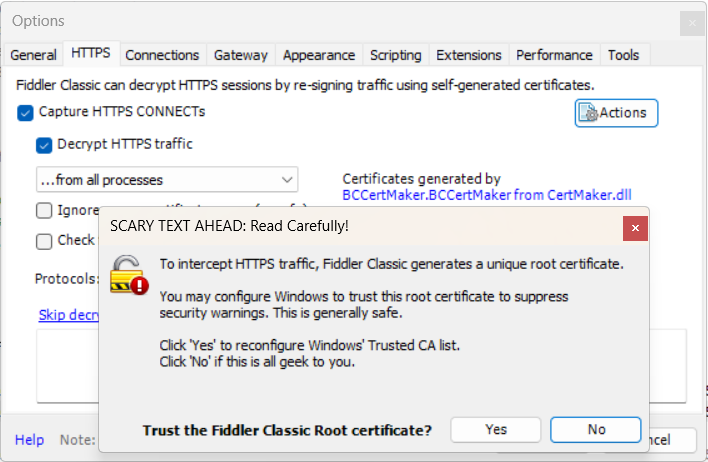
After installation, open Fiddler Classic again, go back to Tools > Options > HTTPS > Actions > Trust Root Certfiicate and also export it to take a look under Actions > Export to Desktop:
After installing/trusting the new Bouncy Castle RootCA – you can clearly see the difference as going to the exact same URL now successfully allows the video to be played without issue also detailing the video uri and corresponding https calls:
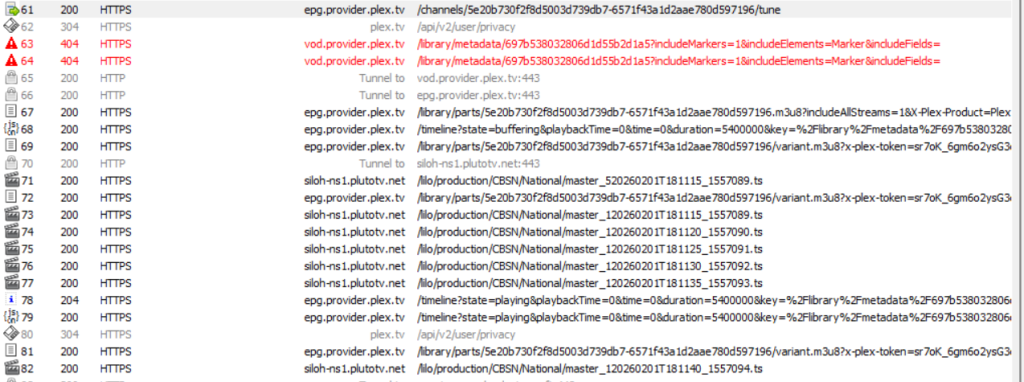
We can now clearly see some API calls to watch.plex.tv, an anonymous login and then vod video links and calls to PlutoTV answering our initial question. Note, the API calls and additional logic required to view the video steam in this scenario – so you won’t exactly runaway with an alternate method to watch the stream directly in VLC – but the communications are all clearly visible now.
You can spot the main difference between the certs if you export them to your desktop (via certlm.msc) and take a closer look with certutil via:
certutil -dump .\FiddlerCustomCA.cer
certutil -dump .\Fiddler-old.cer
We notice right away that the old cert has a subject/CN of DO_NOT_TRUST_Fiddler Root where this is not mentioned in the Bouncy Castle generated Cert. Instead it is named: Fiddler Custom CA/Local Development. We also see the longer Key length of 2048 VS 4906 right away:
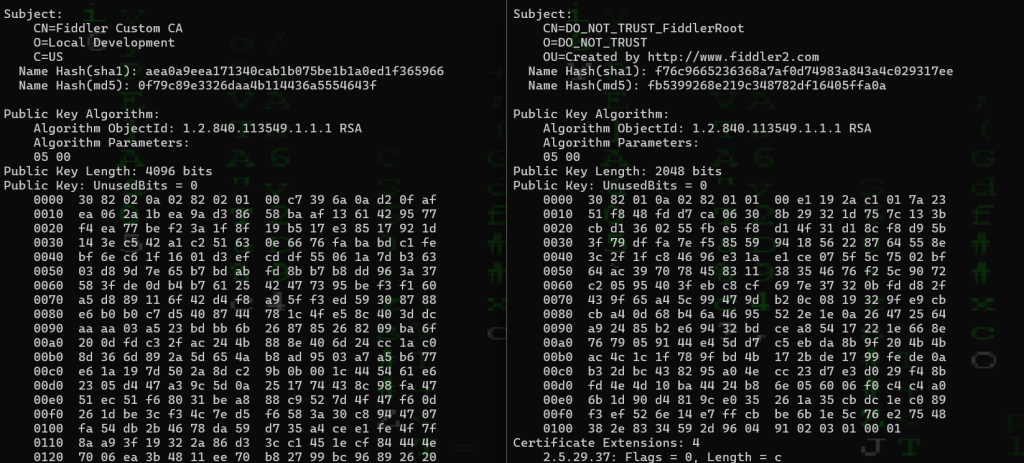
Checking a bit further down we see:
- The old cert indicates: Server Authentication (1.3.6.1.5.5.7.3.1) whereas the new cert does not:
- Server Authentication (1.3.6.1.5.5.7.3.1) indicated limited use by a TLS server whereas the new certificate is an unconstrained certificate authority.
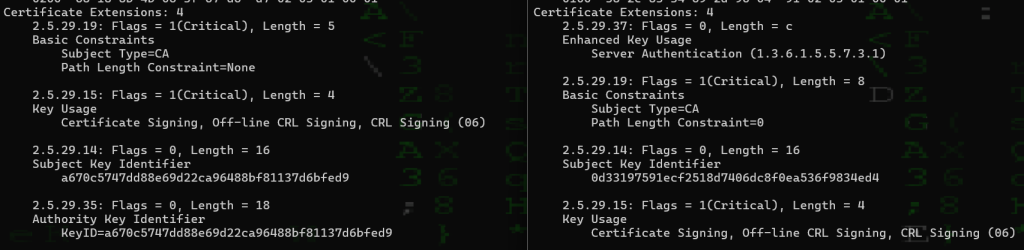
- The new certificate can issue server-auth certificates, client-auth certificates, code-signing certificates, etc.
BONUS: Downloading Anime from your favorite Anime Site:
In this example, we’ve installed the Bouncy Castle Cert and then proceeded to a standard anime site which obfuscates video links hosted there: https://9animetv.to/watch/one-punch-man-season-3-19932?ep=145868:
Note that you can use the X/Remove All Sessions as well as F12 or File > Capture traffic to stop/start capturing traffic to ensure a clean trace.
Playing our first episode and capturing traffic we can clearly see calls out to various cloudflare hosts like: stormwhirl/breezygale/fogtwist/rainfallpath and so on:
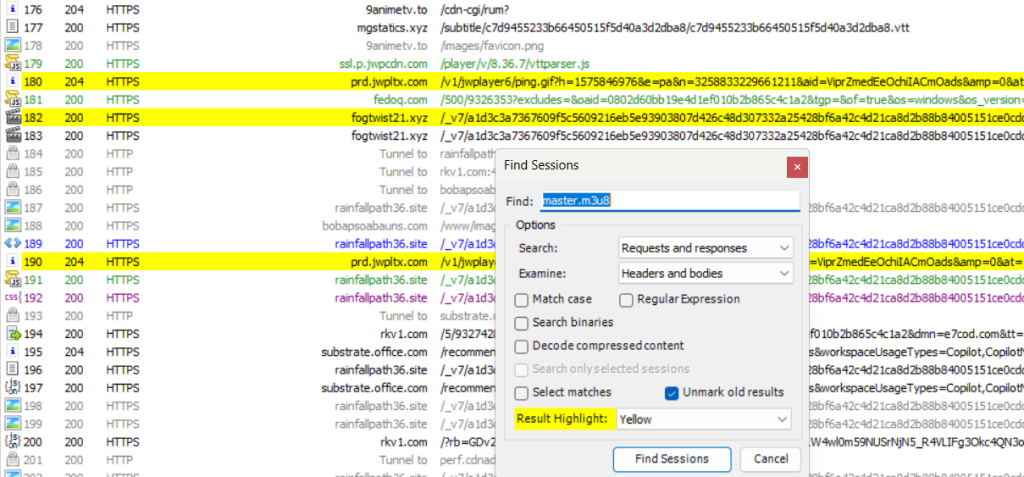
In this instance we can search for master.m3u8 to locate the streaming location of the content. Generally strings like “m3u8|mp4|avi|mkv|video|stream|manifest|playlist” are all good candidates. Copying and pasting that uri entry/line (right click the found line and choose: copy Just Url) into a browser will take you to a blocked CloudFlare page as a proper referral is required and hotlinking is intentionally disabled:
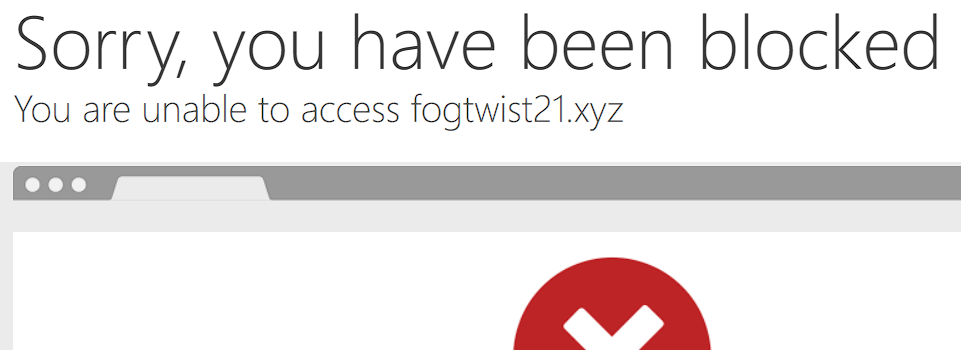
You can still however access the content outside of the website by providing the proper header/referrer and user agent. An easy way to do this is to use yt-dlp in Linux or WSL – for example:
sudp apt install yt-dlp

yt-dlp --add-header "Referer: https://rapid-cloud.co/" \
--add-header "Origin: https://rapid-cloud.co/" \
--user-agent "Mozilla/5.0 (Windows NT 10.0; Win64; x64) AppleWebKit/537.36 (KHTML, like Gecko) Chrome/144.0.0.0 Safari/537.36 Edg/144.0.0.0" \
https://<domain>.xyz/_v7/<long uri................................>/master.m3u8
Note that the referrer is visible in the Fiddler trace when the same line is selected and the header is checked via Inspectors > Headers:
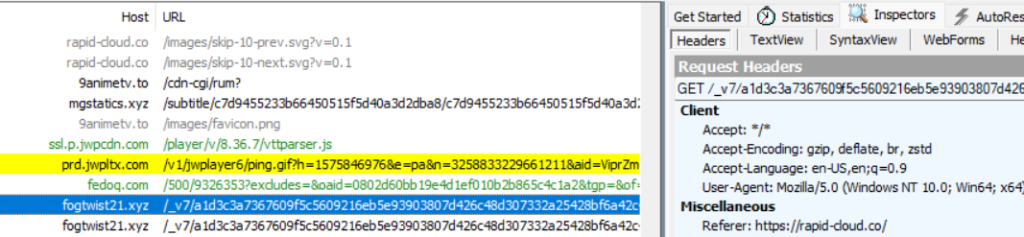
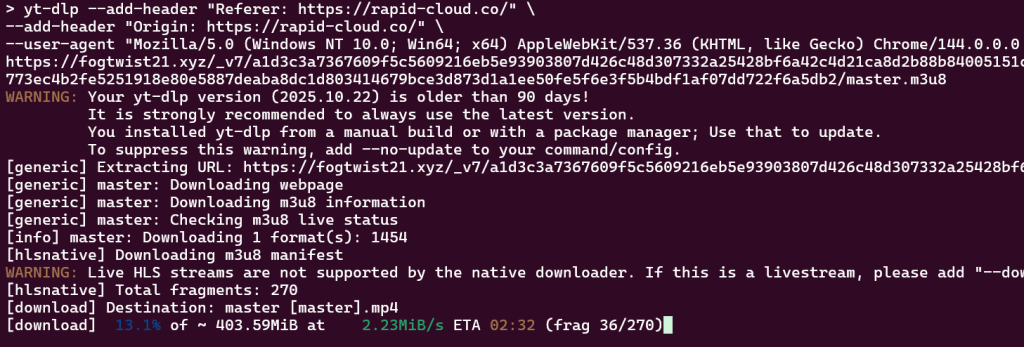
You should notice as long as the uri is current (not expired) and you have provided an appropriate User Agent String (browser identification) and site referral, that the video file can be downloaded without issue.
Note that the above steps are provided for information learning purposes only and for advanced troubleshooting techniques for visibility into HTTPS traffic that would often otherwise not be vissible. These techniques are not intended to be used to circumvent copyright protection, site protections or any other methods that would otherwise prevent the unauthorized access to specific sites/materials/videos/content or otherwise. Please do not perform any of these steps when accessing any site unless otherwise approved by the site administrator and original content distributors.